This is lab number 2 in this series. If you have not already completed the previous lab, please start at Lab 1: Create a proxmox server.
- Login to your proxmox server.
- Click “Datacenter”.
- Click “Storage”.
- Identify which storage path includes “Container Template” in its “Content” column
- On the left side of the screen, expand your node.
- Scroll down until you see the storage path you identified in step 4.
- Click the storage.
- Click “CT Templates”.
- Click the button labeled, “Templates”.
- In “Section: system”, click “lxc ubuntu-24.04-standard 24.04-2 Ubuntu 24.04 Noble (standard).
-
Click “Download”.
Now you have the LXC Template for Ubuntu 24.04. You will need this to create a Proxmox LXC that emulates Ubuntu 24.04.
Let’s create the Ubuntu 24.04 LXC.
- Right click on your proxmox node (The default name is “pve”.)
-
Click “Create CT”.
Now comes the fun part. Now you need to configure the virtual hardware and choose which linux distribution the LXC will emulate (we will use Ubuntu 24.04 for this lab).
Use the following settings:
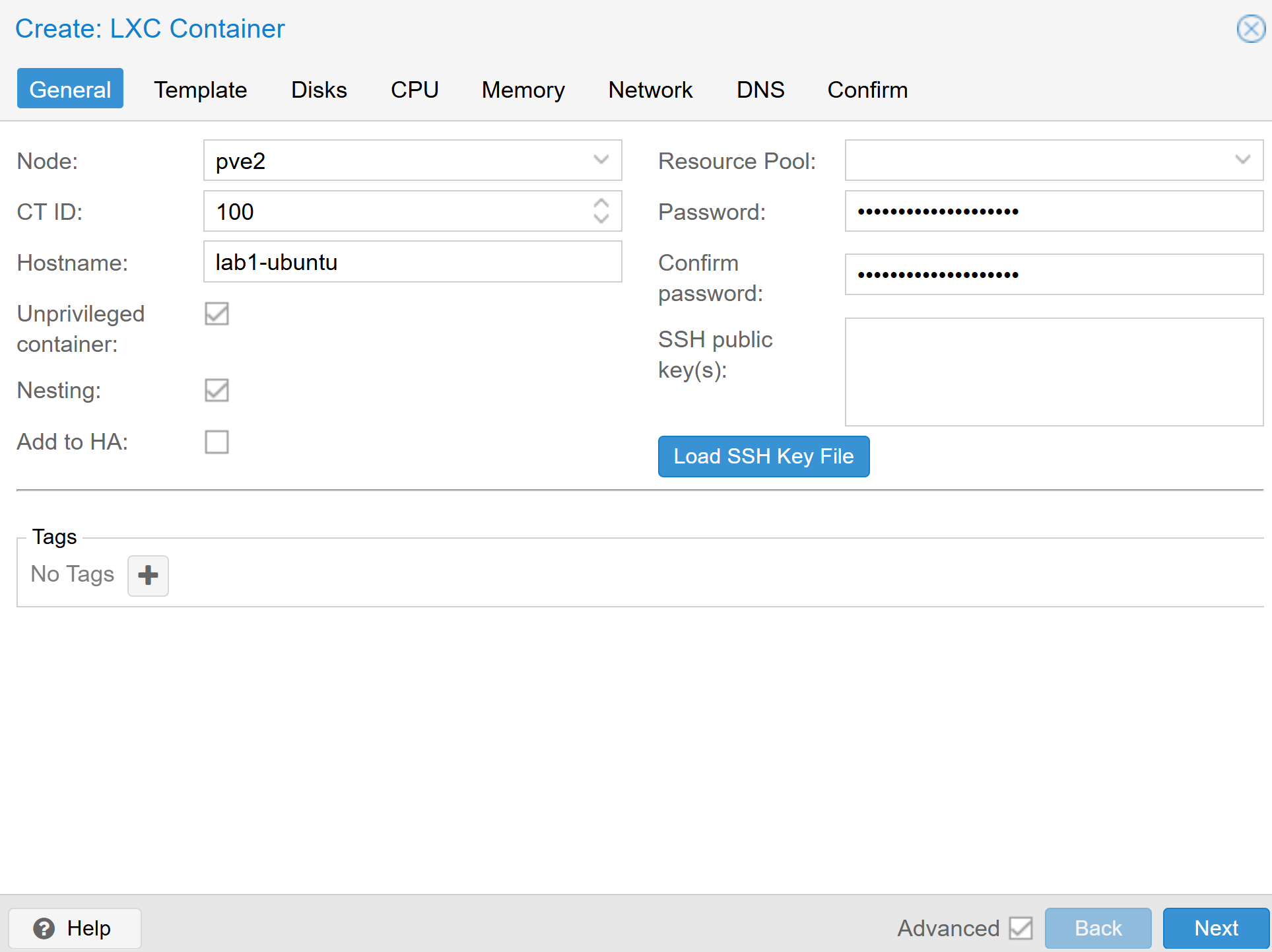
- General
- Node: pve
- CT ID: 100
- Hostname: lab1-ubuntu
- Unprivileged container: Checked
- Nesting: Unchecked
- Resource Pool: Leave blank
- Password: Use a unique, complex password. This will be the “root” password for your LXC.
- Confirm password: Re-enter your unique, complex password.
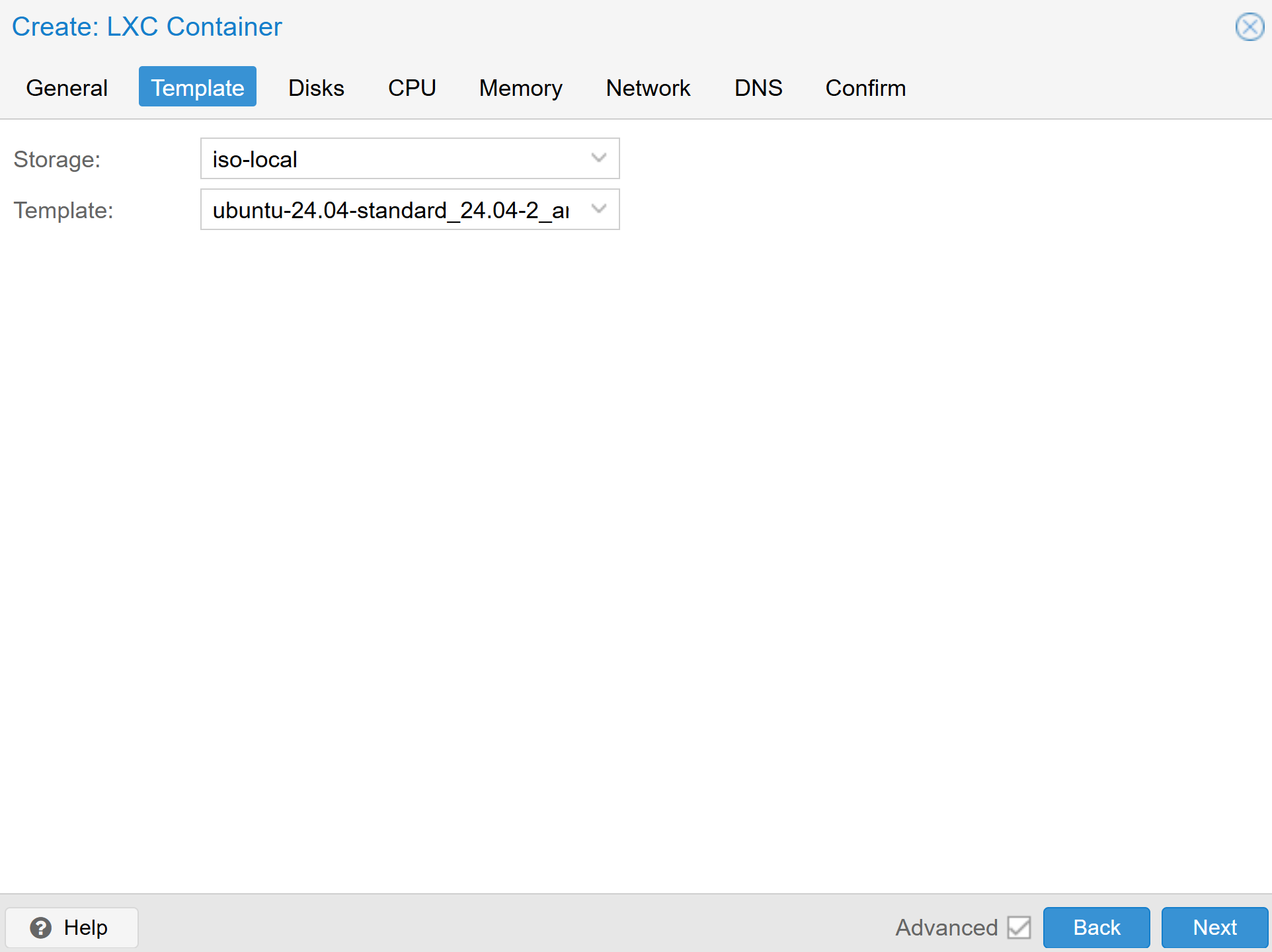
- Template
- Storage: Pick the storage path where “Container Templates” are stored. This is the same storage path as the one identified in step 4 above.
- Template: ubuntu-24.04-standard_24.04-2_amd64.tar.zst
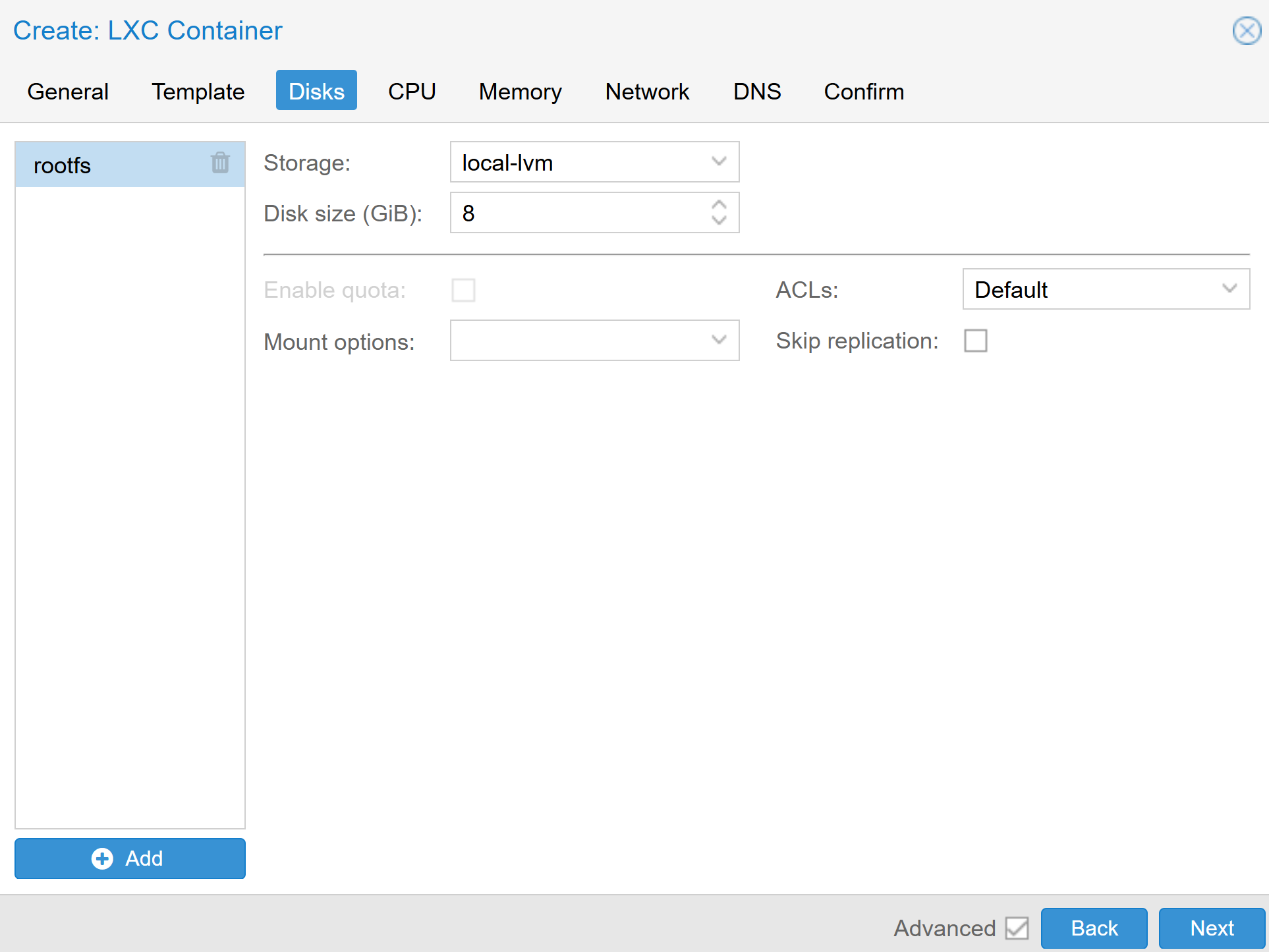
- Disks
- Storage: Choose where your LXCs virtual storage will be located
- Disk size (GiB): 8
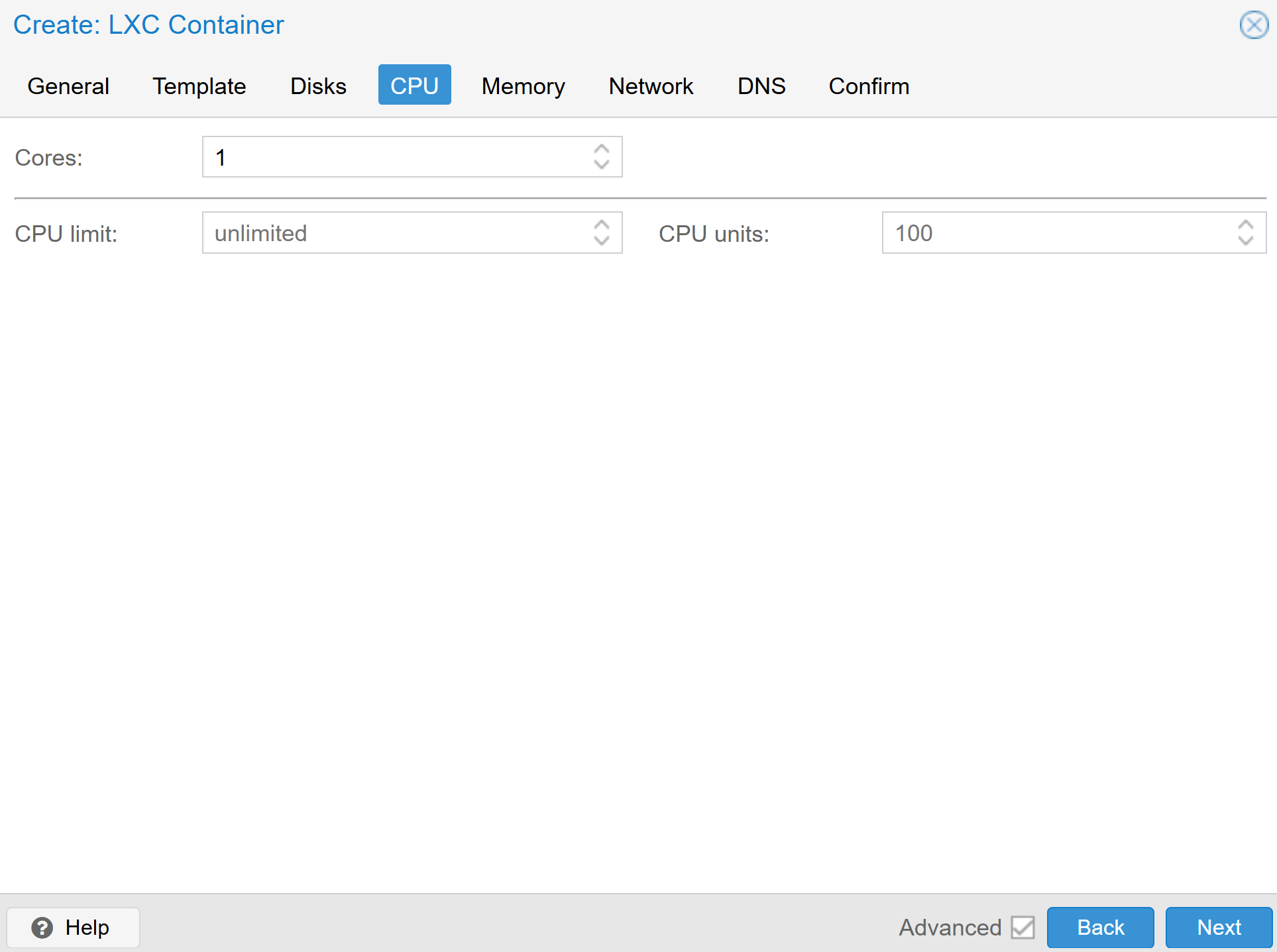
- CPU
- Cores: 1
- CPU Limit: unlimited
- CPU Units: 100
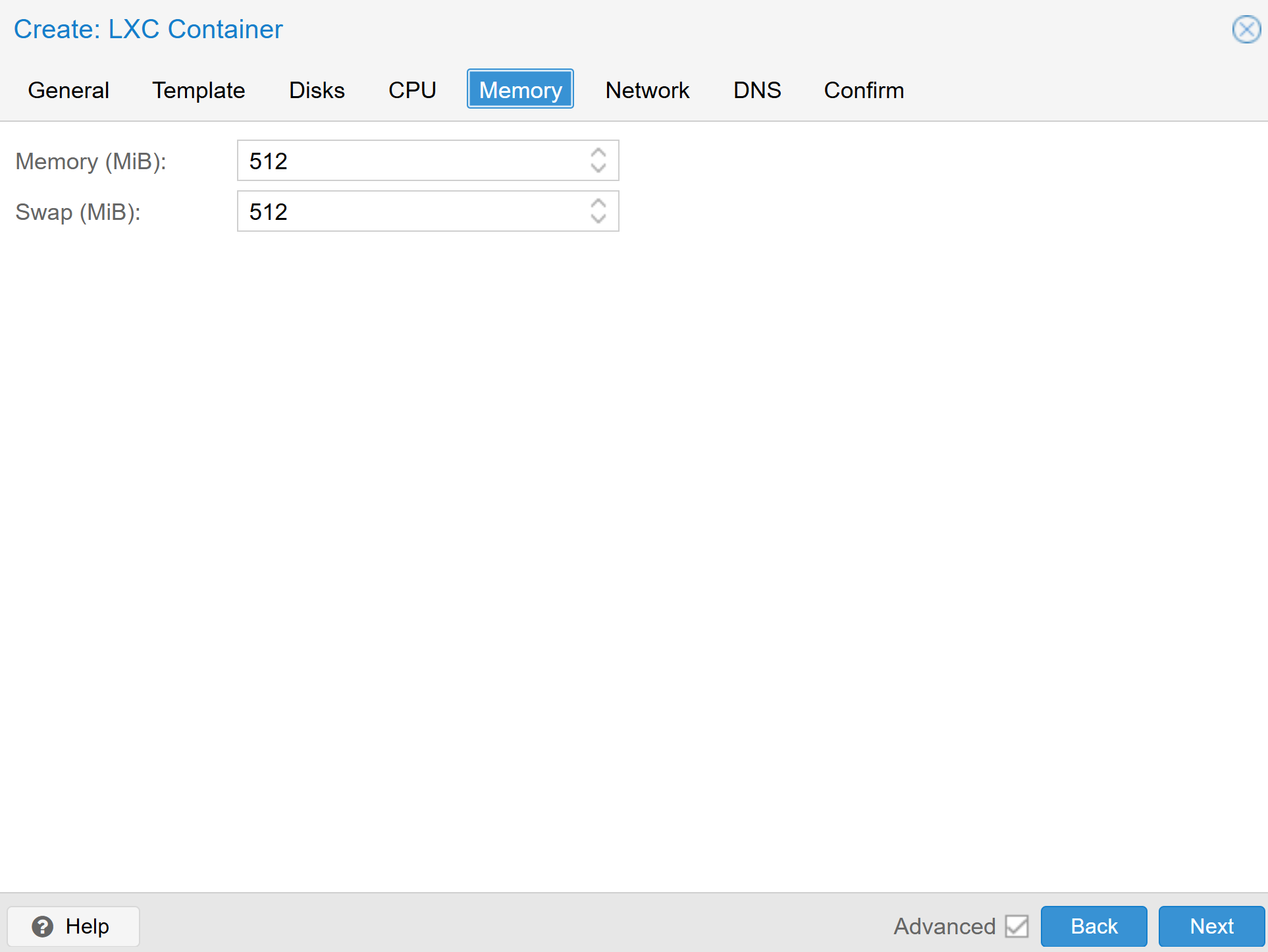
- Memory
- Memory (MiB): 512
- Swap (MiB): 512
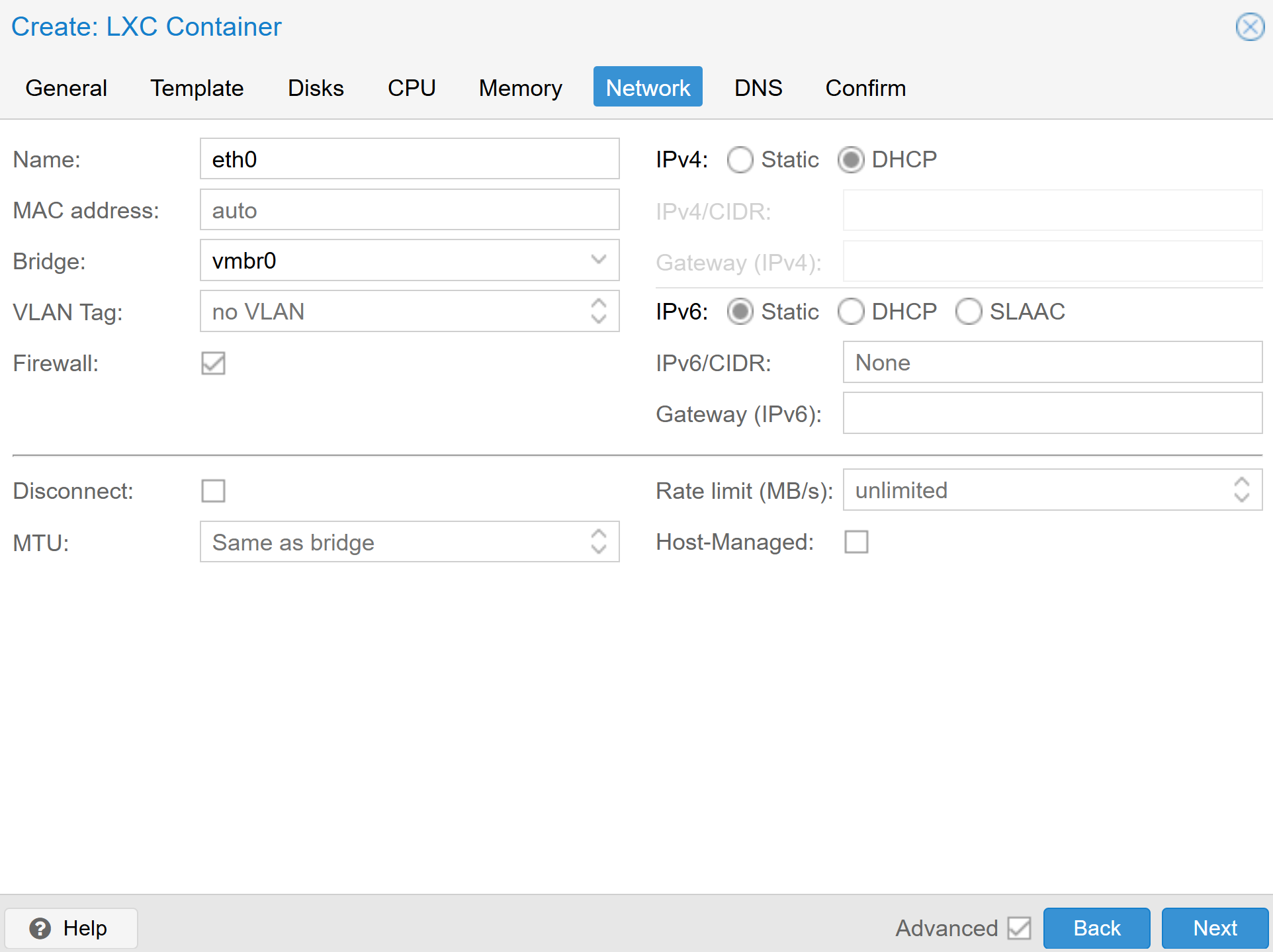
- Network
- Name: eth0
- MAC address: auto
- Bridge: vmbr0
- VLAN Tag: no VLAN (If you want to connect this LXC to a different VLAN, enter the VLAN ID number).
- Firewall: Checked
- IPv4: DHCP
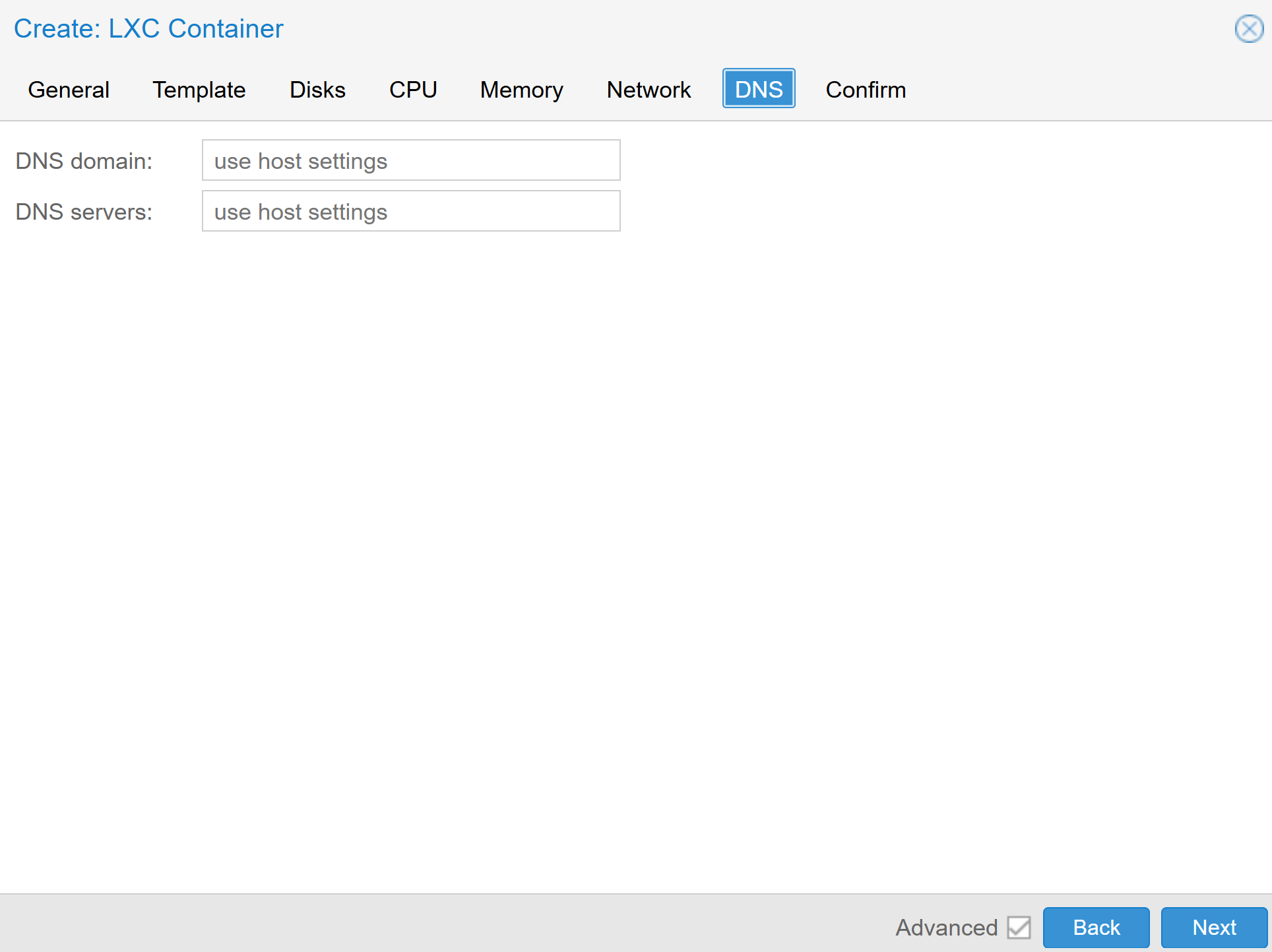
- DNS
- DNS domain: use host settings
- DNS servers: use host settings
- General
- Click “Confirm”.
- Click “Finish”.
- Expand your node.
- Click your “lab1-ubuntu” VM.
- Click “Console”.
- Click “Start”.
- Login using the username root and the LXC password you chose.
- Congratulations, you are logged into a proxmox LXC emulating Ubuntu 24.04. Let’s update Ubuntu 24.04.
-
Run the commands below.
apt get update apt get upgrade -y - Run the command
reboot now!to reboot your LXC. - Next let’s install an nginx web server with the command
apt get install nginx -y. - Run the command
ip ato find your LXCs IP address. - On your management system, browse to http://your-lxcs-ip-address.
- Congratulations, you now have an LXC emulating Ubuntu 24.04 that is running an nginx web server.
Hint:
apt get updatewill check for updates for the programs installed on your linux system.apt get upgrade -ywill install them without being prompted for confirmation. You can combine these commands by entering apt get update && apt get upgrade -y.
Tip: Be aware that if you did not connect the LXC to a VLAN, it may be running on the same network your management system is connected to. While this may simplify access, it is important that you properly secure all lab infrastructure including your proxmox server and LXCs. A security best practice is to place servers in their own VLAN. Infrastructure management interfaces should be in a seperate VLAN. While you might think threat actors are not interested in attacking your lab infrastructure, there are examples of that taking place.1, 2 Because each network is a unique environment, recommending specific network designs or security configurations is outside the scope of these labs. Please ensure you are properly securing your environment as you alone are responsible for your network security.
Here is a list of TryHackMe rooms that offer introductory linux training.
https://tryhackme.com/room/linuxfundamentalspart1 https://tryhackme.com/room/linuxfundamentalspart2 https://tryhackme.com/room/linuxfundamentalspart3
[1] https://www.pcmag.com/news/lastpass-employee-couldve-prevented-hack-with-a-software-update
[2] https://www.cisa.gov/news-events/alerts/2023/11/29/cisa-releases-first-secure-design-alert